
Introduction
Industrial teams monitoring battery production lines, electrical substations, or manufacturing processes face a common challenge: how to view and record thermal camera feeds without expensive proprietary software. RTSP (Real Time Streaming Protocol) solves this by letting compatible software like VLC Media Player pull a live stream directly from a FLIR camera using its IP address and a formatted URL.
Successful implementation depends on several variables: camera model compatibility, video format selection, network configuration, and software setup.
One limitation to flag early: RTSP streams deliver visual video only, not radiometric temperature data. Teams that need actual temperature measurements require different integration tools.
This guide provides step-by-step instructions to display and record RTSP video from FLIR automation cameras, covering the prerequisites, configuration parameters that affect stream quality, and troubleshooting steps for the most common failures.
Key Takeaways
- RTSP URLs combine the camera's IP address with a supported format path:
rtsp://192.168.14.2/avc - VLC Media Player (free at videolan.org) handles viewing and recording via Media > Open Network Stream
- Format support varies by model: A400/A700 support five formats (MPG4, MPEG4, MJPEG, AVC, MJLS); G300a supports only two
- RTSP transmits compressed video only, not radiometric temperature data; use FLIR Atlas SDK for measurement applications
- Most connection failures stem from subnet mismatches, incorrect URL syntax, or firewall blocking port 554
How to Display and Record RTSP Video from FLIR Cameras Using VLC
Getting RTSP video from a FLIR camera into VLC involves four steps: configuring the camera IP, identifying the correct stream URL, connecting in VLC, and setting up recording. Each step builds on the last — get the IP wrong and no URL will work.
Step 1: Configure the Camera IP Address
The camera and host computer must exist on the same subnet before any RTSP connection succeeds. FLIR automation cameras ship with DHCP enabled by default and fall back to link-local addressing (169.254.x.x) when no DHCP server responds. This link-local fallback works for direct connections but creates problems in managed networks.
FLIR IP Config is a free utility that discovers cameras on the network and assigns static IP addresses. Download version 3.5 or later and launch it — the application scans automatically for connected FLIR cameras.
Select your camera and assign a static IP in the same subnet as your host machine. For example, if your computer uses 192.168.1.100, set the camera to 192.168.1.150 with subnet mask 255.255.255.0, then apply the settings.
Static IP assignment is strongly recommended for fixed installations. DHCP-assigned addresses change after router reboots, breaking your saved RTSP URLs. Once the IP is locked in, you can construct the stream URL.
Step 2: Identify the Correct RTSP URL for Your FLIR Camera Model
RTSP URLs follow the format rtsp://[camera-IP]/[video-format]. The video format path varies by camera model, and using an unsupported format returns a connection error rather than a video stream.
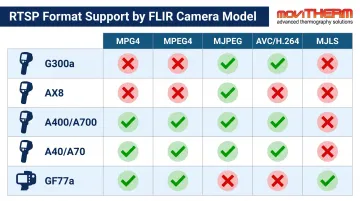
Supported Video Formats by Camera Model:
| Camera Model | MPG4 | MPEG4 | MJPEG | AVC (H.264) | MJLS |
|---|---|---|---|---|---|
| G300a | ✓ | ✗ | ✗ | ✓ | ✗ |
| AX8 | ✓ | ✓ | ✓ | ✓ | ✗ |
| A400, A700 | ✓ | ✓ | ✓ | ✓ | ✓ |
| A40, A70 | ✓ | ✓ | ✓ | ✓ | ✓ |
| GF77a | ✓ | ✓ | ✓ | ✓ | ✓ |
Source: FLIR Knowledge Base Article #1053
The A400, A700, A40, A70, and GF77a models support all five formats including MJLS (Motion JPEG Lossless). The G300a gas imaging camera has the most limited support—only MPG4 and AVC work.
For AX8 cameras, append ?overlay=off to remove graphical overlays: rtsp://192.168.14.2/avc?overlay=off
Multi-Channel Syntax for A400/A700/A50/A70:
These models expose multiple video channels—typically thermal and visual camera outputs. Two syntax variants work:
rtsp://192.168.14.2/avc?ch0(query parameter)rtsp://192.168.14.2/avc/ch1(path-based)
Channel 0 typically carries the thermal video stream, while channel 1 provides visible-light camera output. Verify channel assignments in your camera's web interface before constructing URLs.
Step 3: Open and View the Stream in VLC
VLC Media Player is a free, open-source application that handles RTSP streams without additional plugins or codec installation.
To open the stream:
- Launch VLC Media Player
- Navigate to Media > Open Network Stream
- Select the Network tab
- Enter your complete RTSP URL:
rtsp://192.168.14.2/avc - Click Play
When the IP address and URL format are correct, the thermal video appears in the VLC window within 2-3 seconds. FLIR's documentation confirms these steps work reliably with VLC 2.2.1, though current versions (3.0+) maintain compatibility.
If the stream fails to load, the cause is almost always an IP mismatch, an unsupported format path, or a firewall blocking the RTSP port.
Step 4: Record or Save the Video Stream
VLC offers two recording methods:
Live Recording (Interactive Method):
While the stream plays, access the Record function through any of these paths:
- Select Playback > Record from the menu bar
- Right-click on the video and choose Record
- Click the Record button if visible in your toolbar layout (View > Customization lets you add it)
VLC saves recordings automatically to C:\Users\[username]\Videos by default. Files use the .mp4 container format.
Convert-to-File (Automated Method):
For unattended recording without viewing:
- Open Media > Open Network Stream
- Enter the RTSP URL
- Click the dropdown arrow next to Play and select Convert
- Choose a destination file path and format
- Click Start
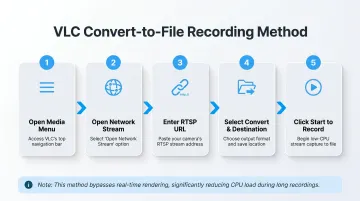
This method writes the stream directly to disk without displaying video, reducing CPU load for long recording sessions.
What You Need Before Setting Up RTSP Streaming from a FLIR Camera
Preparation determines whether your first connection attempt succeeds or requires hours of troubleshooting. Verify three critical areas before beginning setup.
Hardware and Network Requirements
Camera Compatibility:
FLIR automation cameras that support compressed video streaming work with this RTSP process. Compatible families include:
- AX8 series
- A400/A500/A700 series
- A40/A50/A70 series
- GF77a gas imaging cameras
- G300a series
Important: GigE Vision cameras use a different architecture and do not follow this RTSP streaming process. They require GenICam-compatible software and the GigE Vision protocol rather than RTSP.
Network Requirements:
Both camera and host computer must connect to the same Ethernet network or via direct cable. Two requirements to confirm before proceeding:
- Matching subnets: A camera on 192.168.1.x cannot reach a computer on 192.168.0.x without routing. Mismatched subnets are the most common setup failure.
- Open Port 554 (TCP/UDP): The default RTSP port. Firewalls, routers, or corporate network policies blocking this port will prevent all RTSP connections.
Software Requirements
Required Tools:
- FLIR IP Config (version 3.5 or later) — Free download from FLIR's support portal. Handles camera discovery and IP assignment.
- VLC Media Player — Free download from videolan.org. Plays RTSP streams natively with no additional configuration.
Both tools run on Windows at no cost.
Key Parameters That Affect RTSP Stream Quality from FLIR Cameras
Getting connected is step one. Stream quality, stability, and long-term reliability depend on the configuration decisions you make during setup — here's what matters most.
Video Format Selection
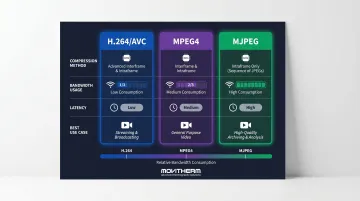
Each compression format trades off bandwidth, latency, and compatibility differently:
- H.264/AVC — Uses temporal compression (analyzing frame-to-frame differences) for high efficiency with minimal quality loss. Best choice for most deployments.
- MJPEG — Compresses each frame independently as a JPEG, delivering lower latency but significantly higher bandwidth. Useful when real-time response matters more than data efficiency.
- MPEG4 — Falls between H.264 and MJPEG in both compression ratio and latency.
Selecting a format your camera doesn't support will produce immediate connection errors, so verify compatibility in the table above before building RTSP URLs. For the FLIR AX8, all three formats output 640 × 480 at a 3 Mbit/s default bitrate — regardless of the camera's native 80 × 60 sensor resolution.
Network Bandwidth and Latency
RTSP streams continuous video data. In industrial environments, shared network infrastructure creates bandwidth competition across PLCs, SCADA systems, and other devices — enough to cause frame drops, stuttering, and dropped connections.
Format choice has a direct impact: a 640 × 480 H.264 stream at 3 Mbit/s can require 8–12 Mbit/s as MJPEG at equivalent quality. For production deployments, use dedicated Ethernet connections or isolated VLANs for camera traffic. The ISA/IEC 62443 industrial security standard recommends network segmentation through zones and conduits — a practice that also isolates camera streams from competing loads.
Camera IP and Subnet Configuration
When the camera IP sits on a different subnet than the host computer, RTSP clients time out rather than connect. This mismatch accounts for the majority of "stream not found" errors during initial setup.
Use static IP assignment in fixed installations. DHCP is fine for bench testing, but when IP leases expire and addresses change, every RTSP URL in your monitoring application breaks.
Multi-Channel Stream Selection (A400/A700/A50/A70 Models)
Multi-sensor cameras expose separate video channels for thermal and visible-light outputs. Connecting to the wrong channel means your monitoring application receives visible-light footage when thermal data was expected — or the reverse.
Channel 0 typically carries the primary thermal stream; channel 1 provides visible-light output or overlay combinations. Confirm channel assignments through the camera's web interface or user manual before deploying RTSP URLs in production.
Common Mistakes and Troubleshooting RTSP Stream Issues with FLIR Cameras
RTSP connection failures during initial setup are common — and almost always trace to one of a few predictable configuration errors.
Wrong RTSP URL Format or Unsupported Video Format
The most common cause: using a format path like /avc on a camera that doesn't support H.264, or omitting the required channel suffix for A400/A700-series models.
- Cross-reference your camera model against the supported format table in Step 2
- Try alternate format paths—if
/avcfails, test/mpeg4or/mjpeg - Add the
?ch0channel suffix for A400/A700/A50/A70 models:rtsp://192.168.14.2/avc?ch0 - For AX8 cameras, verify the format path uses lowercase (
/avc, not/AVC)
IP Address or Subnet Mismatch
This typically happens when the camera and host computer are on different subnets (e.g., 192.168.1.x vs. 192.168.14.x), or when the camera IP changed after initial setup but the RTSP URL wasn't updated.
- Launch FLIR IP Config to verify the camera's current IP address
- Check your network adapter's IPv4 settings (Control Panel > Network Sharing Center > adapter Properties > Internet Protocol Version 4)
- Confirm both devices share the same subnet: if the computer is 192.168.14.100 with mask 255.255.255.0, the camera must be 192.168.14.x
- Update RTSP URLs to match the current camera IP
- Ping the camera from Command Prompt (
ping 192.168.14.2) to verify basic connectivity
Firewall or Network Blocking Port 554
Windows Defender Firewall, corporate firewalls, or router security policies can all block RTSP traffic on port 554.
- Temporarily disable Windows Firewall to test (Control Panel > System and Security > Windows Defender Firewall > Turn Windows Defender Firewall on or off)
- If the stream connects with the firewall disabled, create a specific inbound rule for port 554: Open
wf.msc> Inbound Rules > New Rule > Port > TCP, specific local port 554 > Allow the connection - In managed corporate networks, submit a network change request to whitelist the camera IP on port 554
- Check router port forwarding settings if accessing the camera from a different network segment
VLC Fails to Display Stream Despite Successful Connection
When VLC connects but shows no video, the issue is usually codec incompatibility with the installed VLC version or buffer settings that prevent proper frame rendering.
- Verify you're using VLC 3.0 or later from videolan.org
- Navigate to Tools > Preferences > Input/Codecs and increase network caching from 1000ms to 3000ms
- Switch video format URLs—if
/avcfails to display, test/mpeg4or/mjpegto isolate decoder issues - Open VLC's Messages window (Tools > Messages, Verbosity: 2 Debug) for specific codec or connection errors
- Confirm the camera is streaming by testing the same URL in a second RTSP client
When RTSP Isn't Enough: Alternatives for Industrial FLIR Camera Integration
RTSP streaming through VLC excels at viewing and recording thermal video, but has significant limitations for industrial monitoring: no temperature measurement data, no automated alerting, and no long-term data management.
ONVIF Protocol
ONVIF (Open Network Video Interface Forum) provides standardized device management for IP cameras from multiple vendors. Use ONVIF for camera discovery, PTZ control, and configuration management in multi-camera deployments. The ONVIF Streaming Specification actually mandates RTSP support—ONVIF handles device setup via SOAP/HTTP, then hands off the streaming URI to RTSP for actual video transport.
ONVIF complements RTSP rather than replacing it. Video Management Systems (VMS) that support ONVIF discover and configure cameras automatically, eliminating manual RTSP URL construction. For a single-camera VLC setup, ONVIF adds unnecessary complexity. For 10+ camera installations, ONVIF-compatible VMS software provides real deployment advantages.
FLIR SDK / Spinnaker / FLIR Science File SDK
Choose this path when radiometric temperature data is required—not just thermal video. The FLIR Desktop Atlas SDK provides "full access to the radiometric data for individual pixels," enabling process monitoring, temperature threshold alarms, and thermal data integration into SCADA or analytics systems.
SDK integration requires software development expertise and is more complex than an RTSP/VLC setup. Key considerations:
- Supports all major automation camera models: A400/A700, A40/A70, AX8, GF77a, G300a
- Implementation requires programming in C++, Python, or similar languages
- Best suited for automated industrial monitoring where temperature measurement drives requirements—not visual inspection workflows
The FLIR Science File SDK works differently: it processes saved radiometric files (FLIR's .fff format) rather than live streams, making it the right tool for offline analysis rather than real-time monitoring.
Dedicated Thermal Monitoring Platforms (e.g., MoviTHERM iTL)
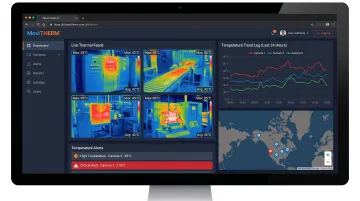
This is the right fit for 24/7 unattended industrial monitoring where continuous operation, automated alerts, and centralized management are required. Applications like battery manufacturing lines, conveyor systems, electrical switchgear monitoring, and process equipment surveillance need more than manual VLC recording.
MoviTHERM's iTL cloud monitoring solution integrates cameras, networking, alarm systems, and monitoring software into a single managed platform. It includes:
- Temperature-based alerting via text, voice, and email
- Trend logging and continuous recording without operator intervention
- Remote access to live images and historical data from any location
According to IP camera market analysis by Technavio, the industrial monitoring segment is growing at 30% annually—driven by exactly this kind of integrated approach.
These solutions cost more than RTSP/VLC setups but eliminate the engineering effort required to build equivalent functionality. For production environments, purpose-built platforms deliver faster deployment and lower total cost than assembling components manually.
Conclusion
RTSP streaming provides an accessible, effective method to display and record thermal video from FLIR automation cameras using free tools like VLC Media Player. Success depends on correct IP configuration, accurate URL formatting, and proper network setup—nail those three, and connections hold reliably in production environments.
One limitation holds firm: RTSP delivers compressed video only, not radiometric temperature data. Teams requiring temperature measurement, automated alerting, or 24/7 unattended monitoring need a more capable integration path. Options include:
- FLIR Atlas SDK — for custom software development with full radiometric data access
- MoviTHERM iTL platform — turnkey industrial thermal monitoring with 24/7 cloud-based alerting
- Direct integration consulting — for facilities that need a scoped solution without starting from scratch
Contact MoviTHERM at (949) 699-6600 to discuss which approach fits your monitoring requirements.
Frequently Asked Questions
What is an RTSP stream?
RTSP (Real Time Streaming Protocol) is a network control protocol that lets client applications like VLC request and receive live video streams from network cameras. The RTSP URL specifies the camera's IP address and video format path, establishing the connection that delivers video via the companion RTP (Real-time Transport Protocol).
Is RTSP better than ONVIF?
RTSP and ONVIF serve complementary functions. RTSP handles video stream transport; ONVIF provides device discovery and configuration management. In most professional IP camera systems, ONVIF discovers the camera and retrieves the RTSP URL, then RTSP delivers the video.
How do I find the RTSP URL for my FLIR camera?
Construct the RTSP URL from two components: the camera's IP address (found using FLIR IP Config) and a supported video format path from your camera's user manual. Format: rtsp://[camera-IP]/[format]. For a camera at 192.168.14.2 using H.264, the URL is rtsp://192.168.14.2/avc.
Can I get temperature data from a FLIR camera RTSP stream?
No. RTSP streams transmit compressed video only—they don't carry radiometric temperature information. To access pixel-level temperature data, use the FLIR Atlas SDK or dedicated thermal monitoring software that connects via the camera's API.
Is RTSP still relevant today?
Yes. Despite being standardized in 1998, RTSP remains widely deployed in IP camera systems, supported in VLC, VMS platforms, and custom applications. Mandatory ONVIF compliance keeps it the practical standard for camera video streaming, and a projected $36.62 billion IP camera market confirms its continued industrial relevance.
What is the best camera for RTSP stream?
For industrial thermal monitoring, FLIR cameras including the A400, A700, AX8, and A40/A70 series all support RTSP with multiple video format options. The right model depends on resolution (80×60 to 640×512), temperature range (-40°C to 2000°C), and integration complexity. Contact MoviTHERM to match a camera to your specific deployment requirements.